I have been wanting to do this blog post for a long time, but I was constantly busy with other things so I am sorry for such a late update on something so important. Here we go.
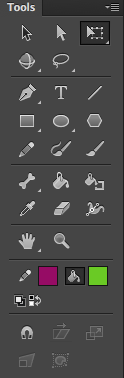
When making an animation one of the windows you should always have open is the tool bar. I like having mine on the right side of the screen, just wide enough to have 3 tools next to each other. If you don’t know what I’m talking about, it’s the bar shown in the picture on the right.
The Pencil or Pen
In the second section of the tools, there are 3 tools which can be used for drawing. in the picture, all of the tools in the 5th row from the top. The pencil is a thin option and draws in the colour shown by the first bow with the pen next to it. You can not change the thickness of the pencil so when you need thin lines it is a nice option but otherwise not much better than the pen.
There are two pens, both of which draw in the colour of the second box, to the right of the bucket. The thickness and shape of the pen is adjustable and therefore very useful but it can not draw as thin as the pencil. The only difference between these two pens is that the one on the left makes everything you draw smooth and into known shapes, a roughly drawn circle would therefore automatically become a smooth nice circle, while the pen on the right does not do anything like that. It just keeps the shape you’ve drawn exactly like you did.
Shapes
In the row above the pens and pencil there are 3 shapes, a rectangle, triangle and hexagon. When you select one of these you can make the shape you selected on the canvas, it will be in the colour of the second box with a small outline in the colour of the first box.
Select
The very first tool in the bar is a tool with which you can highlight certain parts of your animation and then move it along the screen. If the drawing is already a symbol than simply clicking on the drawing with this tool will make you be able to move it. The only problem, you can not change shape and size of the object with this tool. For this I always use the 3rd object, a rectangle with an arrowhead next to it. This selects the same as the other cursor but will give you the options to move, rotate, change it’s size and even squash it by moving the middle of the object somewhere to the side and then changing it’s size. This seems quite complicated but really, use this tool once or twice and you will understand and see why it is so useful.
Conclusion
I think those are all the tools I tend to use in an animation. I hope this post is helpful for everyone unsure of what tools do what. The best thing I recommend to do is to experiment with the tools and see what you like best. I discovered purposes of all the tools (and my knowledge could therefore be faulty) and I have found my favourites over time.

 STARTING ANIMATIONS